

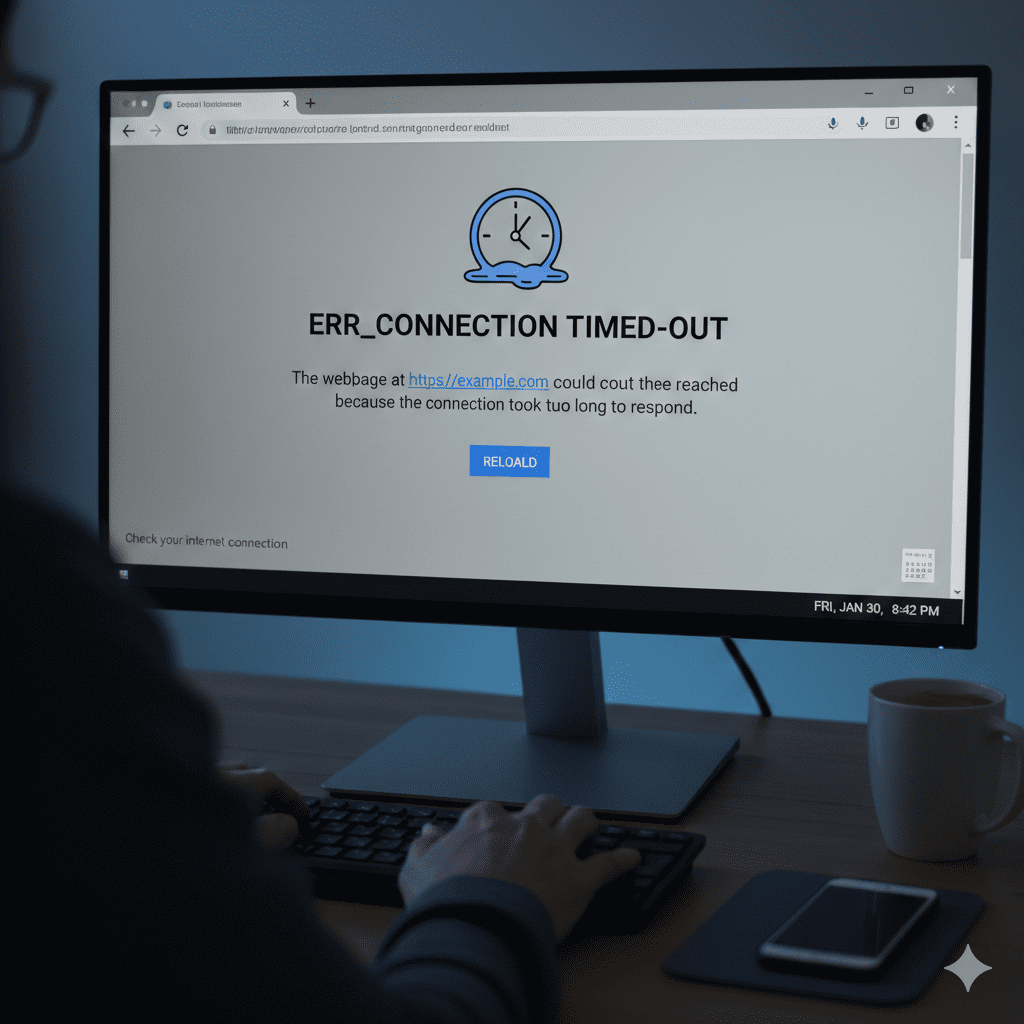
How to Fix ERR_CONNECTION_TIMED_OUT Error: 8 Proven Solutions (2026)
Last night, I was working on a very important project. And out of nowhere, boom,ERR_CONNECTION_TIMED_OUT just pops up on my screen.First reaction? Panic. Like what just happened? Then I thought okay, maybe the website hosting server crashed or something.ERR_CONNECTION_TIMED_OUT it’s one of those errors that really tests your patience. But the good thing is You don’t need to be a tech wizard to fix it. Actually, pretty straightforward once you know what to do.I’m gonna walk you through exactly how to fix this. But first, let me explain what this error actually means, why it happens, and most importantly, 8 ways to solve it that actually works. Whether you’re on Chrome, Firefox, or Edge these solutions apply to all of them.
What is ERR_CONNECTION_TIMED_OUT?
basically your browser saying “Hey, I tried connecting to that website you wanted, but it’s taking long time to respond, so I’m giving up.”
Think of it like calling a friend. Phone rings and Nobody picks up. Eventually you just hang up, right? Browser does the exact same thing.
Technical breakdown:
Your browser sends a connection request to the website’s server. Request gets stuck somewhere in the network. Server doesn’t respond within the timeout window – usually 30 to 120 seconds. Browser throws this error at you.
This can happen on any browser. Chrome, Firefox, Safari, Edge, Opera – doesn’t matter. Firefox might word it differently (“The connection has timed out”), but it’s the same problem.
Causes of ERR_CONNECTION_TIMED_OUT Error?
So before we start fixing the error, lets just figure this out what is actually causing this.
1.Your Internet Connection is Being Slow
This is it. Like seriously, this causes the problem 7 out of 10 times.
Your internet is either crawling or keeps dropping completely. Browser tries to connect, waits and then just gives up.
Check other devices on your WiFi are working. If they’re also struggling? It’s definitely your internet.
2. Router Running Continousely Without Any Break
When did you last restart your router? Last week? Last month?
Look, routers get tired. usally routers start acting weird after a while.
Every week or two, I unplug my router for 30 seconds. That’s it. Its Actually Fixes like 90% of random internet problems. Sounds too simple but it genuinely works.
3. Browser Has Corrupted Junk files stored
So your browser saves temporary files (cache and cookies) to load websites faster.
Last month I was helping my friend to fix this same error. Spent TWO HOURS trying everything I could think of. Finally cleared his browser cache and boom everything worked perfectly. I felt like an idiot but also relieved lol.
4. Antivirus Blocking
Your antivirus sometimes blocks normal sites by mistake.
Free antivirus programs especially. They’re aggressive because they want you to pay for the full version.
5. DNS Issues
DNS is basically how your browser find the websites. its like GPS for the internet.
DNS helps browser find websites. When it’s slow, pages don’t load.
Your ISP’s(internet service provider) default DNS is probably slow. I switched to Google DNS (8.8.8.8) about 6 months ago and my internet feels noticeably faster. Will show you exactly how to do this in the solutions section.
6. Proxy Settings Got Messed Up
Ever installed a VPN? Or maybe one of those “speed up your internet” programs?
Some of them change your proxy settings without asking. Then your connection stops working properly.
Even after uninstalling the VPN, those proxy settings sometimes stay changed.
7. Network Drivers Need Updating
Usally software that controls your WiFi card needs updates.
if you recently updated Windows. Sometimes the update messes with your drivers.
8. The Website is Actually Down (Not You)
Sometimes It’s not problem on you end.
The website you’re trying to visit might be having server issues. Or scheduled maintenance.
8 Proven Solutions to Fix ERR_CONNECTION_TIMED_OUT
Solution 1: Check Your Internet Connection
I get it, this seems too simple. But you’d be surprised how often this is the real issue!
Try opening a different website, like google.com or youtube.com.
If those sites load fine, the issue is with the specific website’s server, not your connection.
If no sites load, check if your Wi-Fi is connected; look for the Wi-Fi icon in your taskbar.
Try loading a website on your phone using the same Wi-Fi network.
If your phone can’t connect either, the problem is definitely with your internet.
Quick Fix: Turn your Wi-Fi off and back on again.

Solution 2: Restart Your Router and Modem
This gives your internet equipment a fresh start. It clears temporary glitches and reconnects.
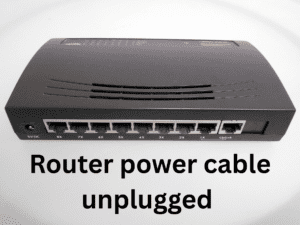
1. Unplug your router’s power cable from the wall outlet.
2. If you have a separate modem, unplug that too.
3. Wait for 30 seconds.
4. Plug your modem back in first (if you have one).
5. Wait for all the lights to stabilize, usually 1-2 minutes.
6. Now plug your router back in.
7. Wait for the Wi-Fi light to turn solid, not blinking.
8. Reconnect your computer to the Wi-Fi and test the website.
Pro tip: If this fixes your problem but it keeps happening, your router might be failing. Consider upgrading if it’s over 5 years old.
Solution 3: Clear Your Browser Cache and Cookies
Sometimes browser cache memory gets messed up, causing errors like ERR_CONNECTION_TIMED_OUT.
For Google Chrome:
1. Click the three dots (⋮) in the top-right corner.
2. Go to “Settings.”
3. Click “Privacy and security” in the left sidebar.
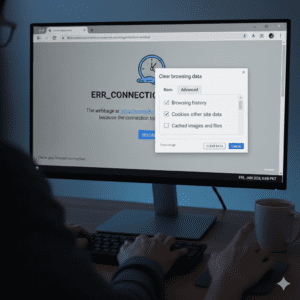
4. Select “Clear browsing data.”
5. Choose “All time” from the time range dropdown.
6. Ensure “Cookies and other site data” and “Cached images and files” are checked.
7. Click “Clear data.”
For Firefox:
1. Click the menu button (≡) in the top-right.
2. Select “Settings.”
3. Go to “Privacy & Security.”
4. Scroll down to “Cookies and Site Data.”
5. Click “Clear Data.”
6. Check both boxes and click “Clear.”
For Microsoft Edge:
1. Click the three dots (…) in the top-right.
2. Select “Settings.”
3. Go to “Privacy, search, and services.”
4. Under “Clear browsing data,” click “Choose what to clear.”
5. Select “All time” and check the relevant boxes.
6. Click “Clear now.”
After clearing, restart your browser completely by closing all windows and reopening it before trying the website again.
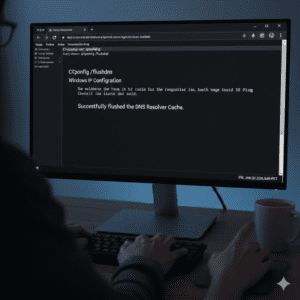
Solution 4: Flush Your DNS Cache
The DNS cache stores website addresses your computer has visited recently. Flushing it forces your computer to get new DNS information.
For Windows 10/11:
1. Press Windows key + R to open the Run dialog.
2. Type cmd and press Ctrl + Shift + Enter to open Command Prompt as administrator.
3. Type this command exactly: ipconfig /flushdns.
4. Press Enter.
5. You should see “Successfully flushed the DNS Resolver Cache.”
6. Close the Command Prompt and test your connection.
For Mac:
1. Open Terminal by pressing Command + Space, typing “Terminal,” and pressing Enter.
2. Type this command: sudo dscacheutil -flushcache; sudo killall -HUP mDNSResponder.
3. Press Enter.
4. Enter your Mac password when prompted; you won’t see it as you type—that’s normal.
5. Press Enter again.
Solution 5: Change Your DNS Server
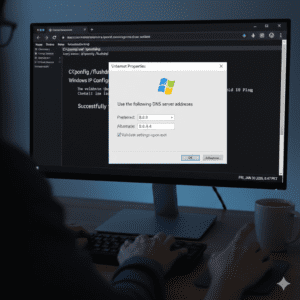
Your default DNS server, which your internet service provider supplies, might be slow or having issues. Switching to a public DNS, like Google DNS or Cloudflare DNS, often fixes timeout problems.
1. Press Windows key + R, type ncpa.cpl, and press Enter.
2. Right-click your active network connection, usually “Wi-Fi” or “Ethernet.”
3. Click “Properties.”
4. Double-click “Internet Protocol Version 4 (TCP/IPv4).”
5. Select “Use the following DNS server addresses.”
6. Enter these DNS addresses:
- For Google DNS: Preferred: 8.8.8.8 / Alternate: 8.8.4.4
- For Cloudflare DNS: Preferred: 1.1.1.1 / Alternate: 1.0.0.1
7. Click “OK” on all windows.
8. Restart your browser.
For Mac:
1. Go to System Preferences > Network.
2. Select your active connection and click “Advanced.”
3. Go to the DNS tab.
4. Click the + button and add 8.8.8.8 and 8.8.4.4.
5. Click “OK” and then “Apply.”
Why this works: Public DNS servers are usually faster and more reliable than your ISP’s DNS servers, and they’re free!
Solution 6: Disable Firewall and Antivirus Temporarily
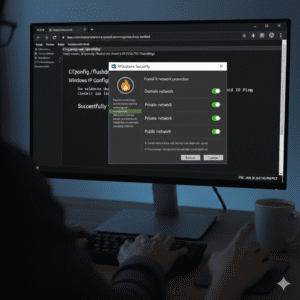
Your firewall or antivirus may be mistakenly blocking the website you’re trying to access.
Important: Only do this temporarily for testing. Re-enable your protection right after.
For Windows Firewall:
1. Type “Windows Security” in the Start menu search.
2. Click “Firewall & network protection.”
3. Click on your active network, probably “Private network.”
4. Toggle “Windows Defender Firewall” to OFF.
5. Try accessing the website.
6. Don’t forget to turn it back ON!
If the website loads with the firewall off, you need to add an exception for that site in your firewall settings, not keep the firewall disabled.
For antivirus software: Right-click the antivirus icon in your system tray and look for “Disable” or “Pause Protection.” Every antivirus is different, so check your specific program’s documentation.
Solution 7: Check and Disable Proxy Settings
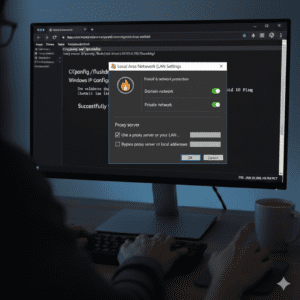
If you’re not using a proxy intentionally, having proxy settings enabled can cause connection timeouts.
1. Press Windows key + R.
2. Type inetcpl.cpl and press Enter.
3. Go to the “Connections” tab.
4. Click “LAN settings.”
5. Uncheck “Use a proxy server for your LAN.”
6. Ensure “Automatically detect settings” is checked.
7. Click “OK” on all windows.
Solution 8: Reset Network Settings
If nothing else worked, resetting your network settings to default can fix deep-rooted connection issues.
For Windows 10/11:
1. Open Command Prompt as administrator (Windows key + X, select “Command Prompt (Admin)” or “Windows PowerShell (Admin)”).
2. Type these commands one at a time, pressing Enter after each:
– netsh winsock reset
– netsh int ip reset
– ipconfig /release
– ipconfig /renew
– ipconfig /flushdns
3. Restart your computer.
For Mac:
1. Go to System Preferences > Network.
2. Select your connection and click the minus button to remove it.
3. Click Apply.
4. Click the plus button to add it back.
5. Select your connection type and click “Create.”
6. Click “Apply” again.
What this does: This completely resets all your network adapters, TCP/IP stack, and DNS settings. It’s like a fresh installation for your network.
Troubleshooting Tips:
Still having trouble? Here are some additional tips:
Check if the website is actually down:
– Visit downforeveryoneorjustme.com and enter the website URL.
– Or try accessing the site from your mobile data instead of Wi-Fi to rule out network issues.
Test with a different browser:
If the website loads in another browser, like Edge instead of Chrome, the issue is specific to your browser. Try reinstalling your main browser.
Try a different device:
Can you access the website on your phone or tablet using the same Wi-Fi? If yes, the issue is with your computer, not your internet.
Contact your ISP:
If you’ve tried everything and still can’t connect to any websites, call your Internet Service Provider. There might be an outage or issue on their end.
Update Windows:
Outdated versions of Windows can have network bugs. Go to Settings > Update & Security > Windows Update and install any available updates.
Frequently Asked Questions (FAQ)
Q1: Why does ERR_CONNECTION_TIMED_OUT only happen with certain websites?
A: If specific websites show this error, those websites might be experiencing server issues, or your firewall could be blocking them. It could also mean your ISP is limiting or blocking access to those sites.
Q2: Can a VPN fix the ERR_CONNECTION_TIMED_OUT error?
A: Yes, sometimes! If your ISP is blocking or throttling certain websites, a VPN can help bypass these restrictions. However, if the issue is with your local network or the website’s server, a VPN won’t help.
Q3: How long should I wait before considering it a timeout error?
A: Most browsers wait 30-120 seconds before timing out. If a page doesn’t load after 2 minutes, it’s likely facing a connection timeout.
Q4: Is ERR_CONNECTION_TIMED_OUT the same as ERR_CONNECTION_REFUSED?
A: No! CONNECTION_TIMED_OUT means the server didn’t respond in time. CONNECTION_REFUSED means the server actively rejected your connection. They need different troubleshooting methods.
Q5: Will changing DNS to Google DNS make my internet faster?
A: It can make website loading slightly quicker because DNS lookups happen faster, but it won’t increase your actual download or upload speeds. However, it often makes browsing feel smoother.
Q6: Can malware cause ERR_CONNECTION_TIMED_OUT errors?
A: Absolutely. Malware can alter your network settings, DNS configurations, or hosts file to block websites. Run a full system scan with your antivirus if you suspect malware.
Q7: Why does restarting my router fix so many internet problems?
A: Routers have limited memory and can get overwhelmed with connection data over time. Restarting clears this temporary data, reassigns IP addresses, and re-establishes connections with your ISP.
Q8: Should I change both IPv4 and IPv6 DNS settings?
A: For most users, changing IPv4 DNS settings is enough. IPv6 is newer, and not all websites support it yet. you can set IPv6 DNS too (Google’s IPv6 DNS is 2001:4860:4860::8888 and 2001:4860:4860::8844).
Conclusion :
The ERR_CONNECTION_TIMED_OUT error, along with extra troubleshooting tips! I know dealing with connection errors can be very frustrating, especially when you’re in the middle of something important.
The best thing is that this error is almost always fixable on your end. Start with the simple solutions like restarting your router and clearing browser cache. If those don’t work, move on to the more advanced fixes like changing DNS servers or resetting network settings.
In my experience, about 80% of timeout errors get fixed by either restarting the router, clearing browser cache, or changing DNS servers. So definitely try those first before diving into the more technical stuff.
Remember, if you’ve tried everything and the error persists across all devices and networks, it’s likely a server-side issue with the website itself.
Have you successfully fixed your ERR_CONNECTION_TIMED_OUT error? Which solution worked for you? Drop a comment below and let me know! And if you found this guide helpful, share it with someone who’s struggling with the same issue.
Other Articles : https://techandtools4u.com/new_playstation_plus_games_december_2025/




One Comment